User Manual
Download and install
Get it from the Google Play Store using this link or the Play Store icon in the upper-right or lower-right corner of this page.
Log in
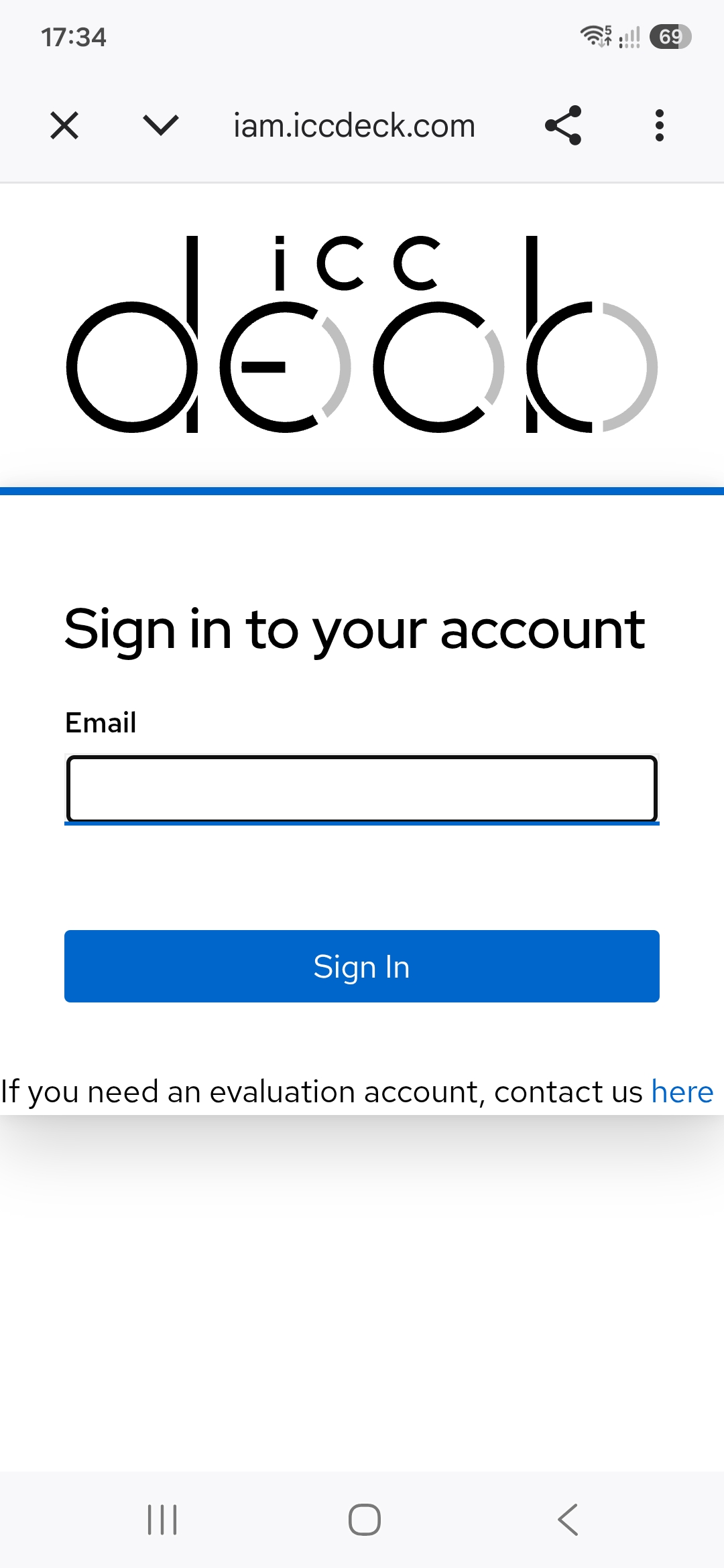
When the app starts for the first time, or whenever you need to log in again, you will be greeted by a login screen.
Note: The login prompt opens in a dedicated browser window rather than directly in the app. This is intentional and helps keep the login process more secure. In practice, even the ICC Deck app itself does not have access to your login credentials.
Set ICC Deck as the default wallet app
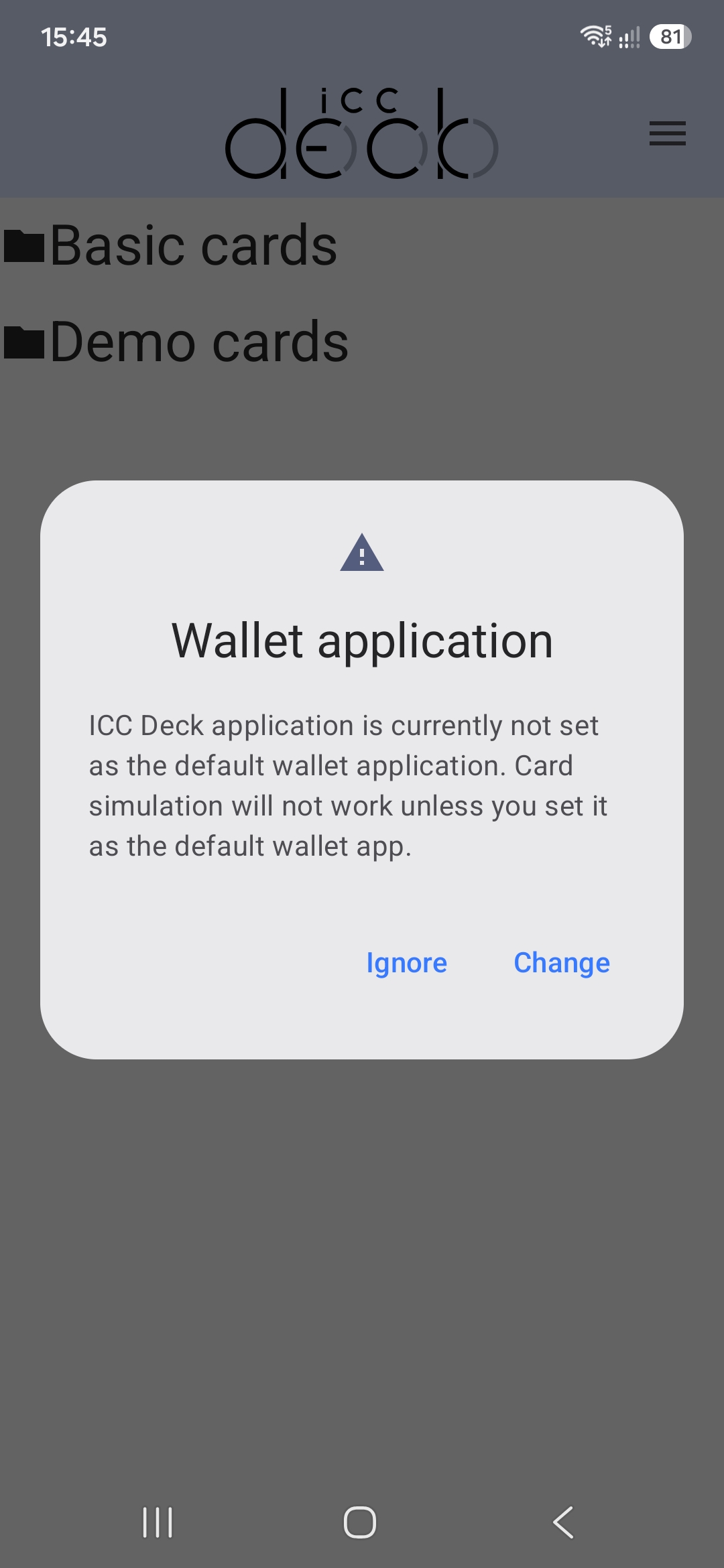
If ICC Deck is not selected as the default wallet app, a pop-up message will appear with a direct link to Android’s default wallet settings. Tap Change to adjust the settings. If you only want to browse cards or use the contact probe, tap Ignore and continue using the app.
Note: If ICC Deck is not set as the default wallet app, contactless card simulation will not work. The probe can only simulate contact cards.
Navigate through card folders
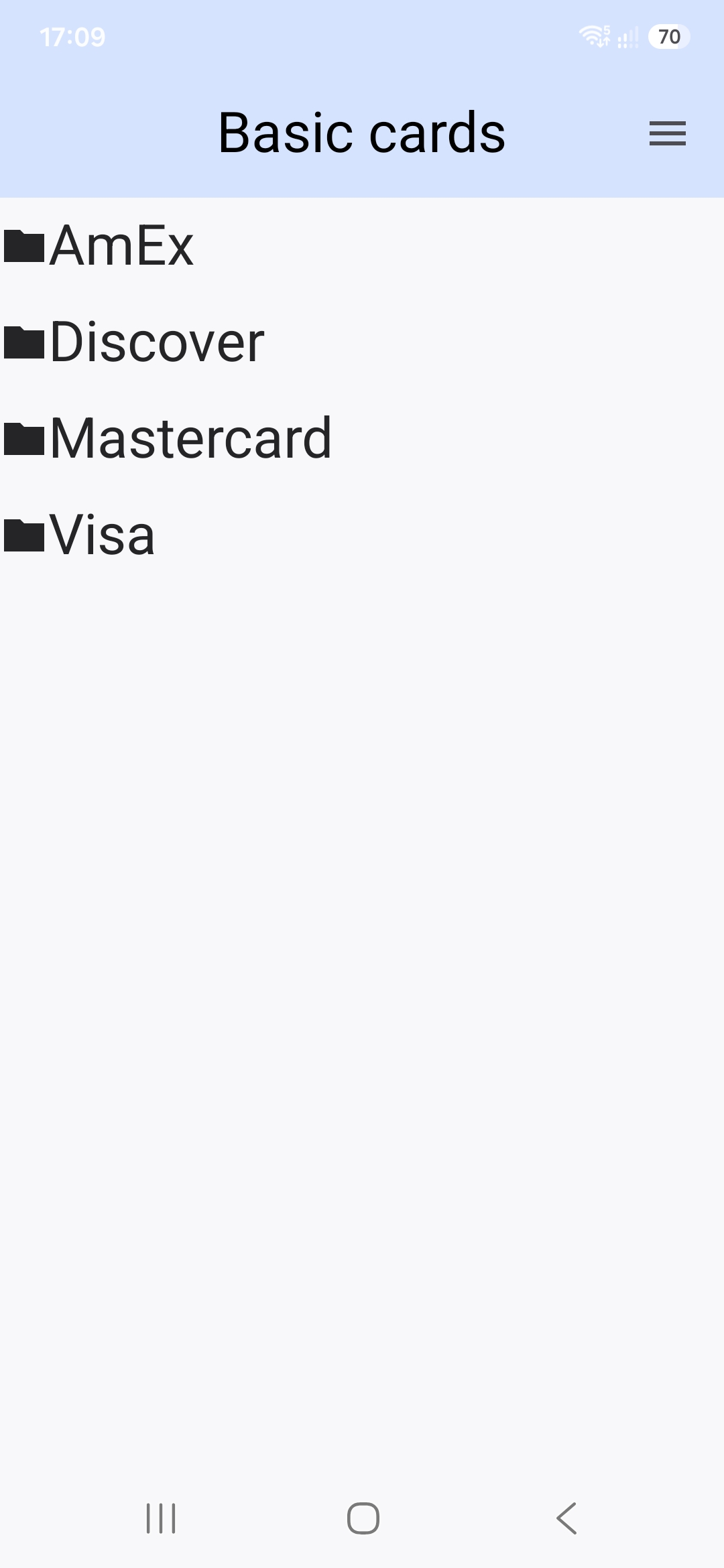
After logging in, you can browse the available cards, organized in a folder structure. Tapping a folder opens it. To go back up one level, use Android’s Back control.
Note: The available cards may vary depending on the logged-in user.
Select a card to simulate
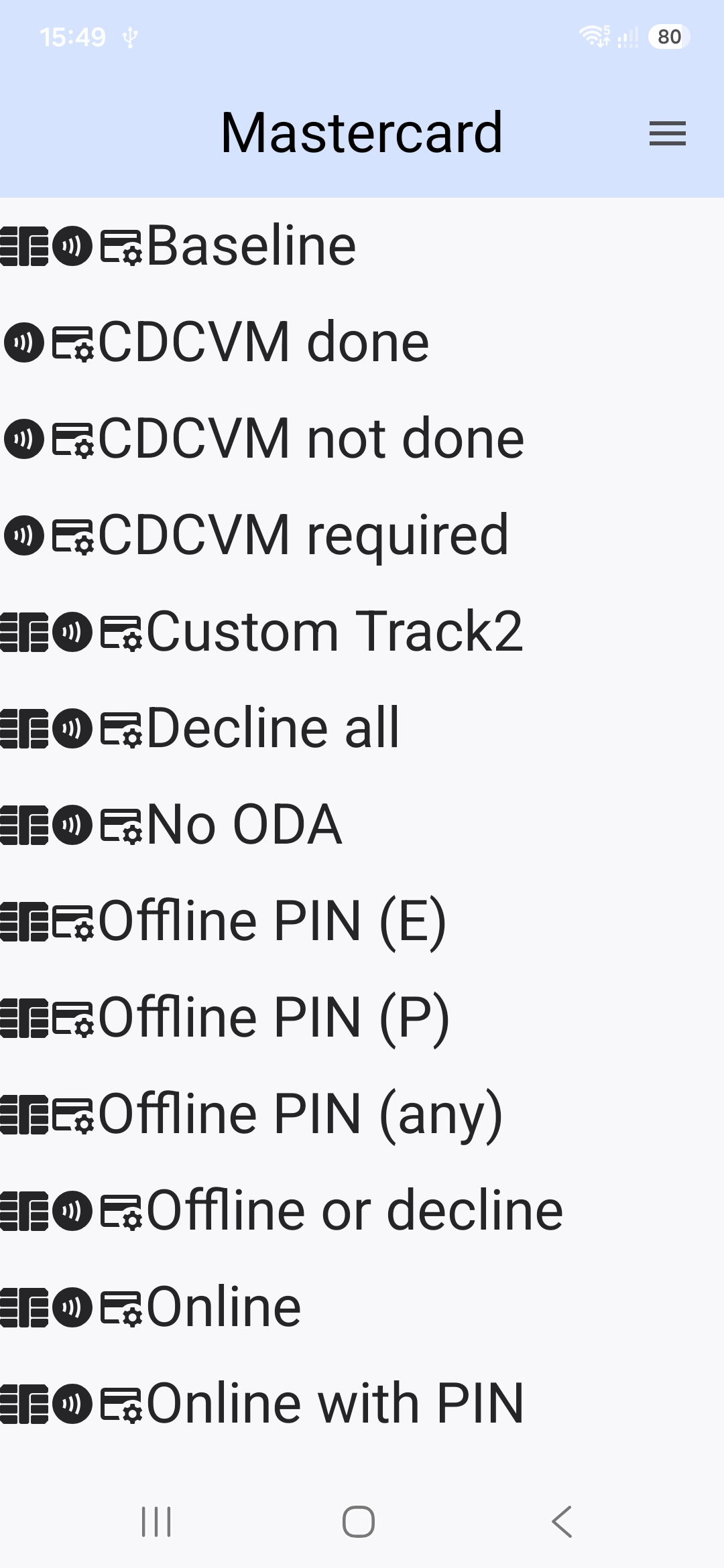
When you browse the folders, you will reach a list of cards. Each card has a descriptive name and is preceded by a few icons:
 - Indicates that this card can be simulated over a contactless interface of the phone.
Note: A greyed-out icon means that ICC Deck is not set as the default wallet app, so contactless simulation will not work.
 - Indicates that this card can be simulated using a contact probe.
Note: A greyed-out icon means that the probe is not connected, so contact simulation will not work.
 - Indicates that some of the card’s features can be customized.
Customize a selected card
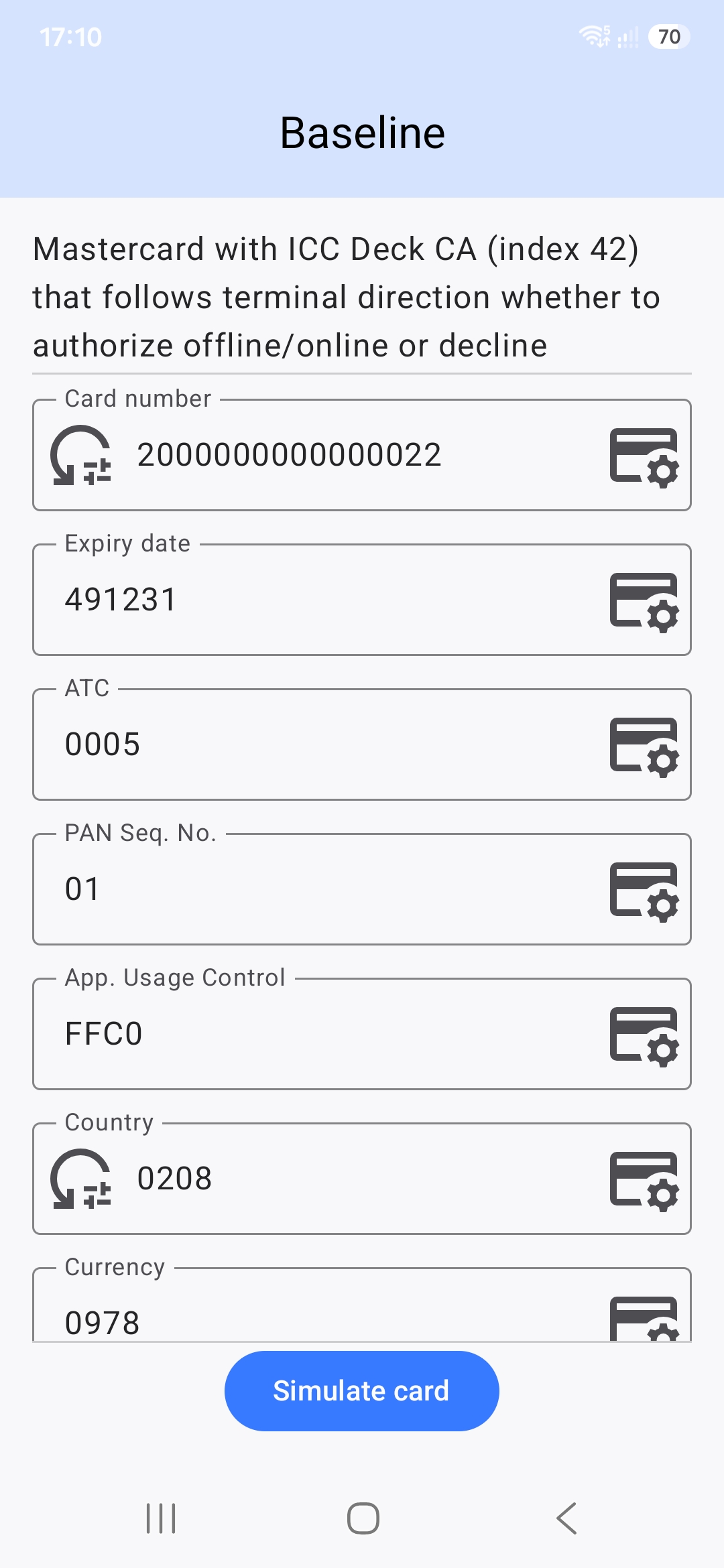
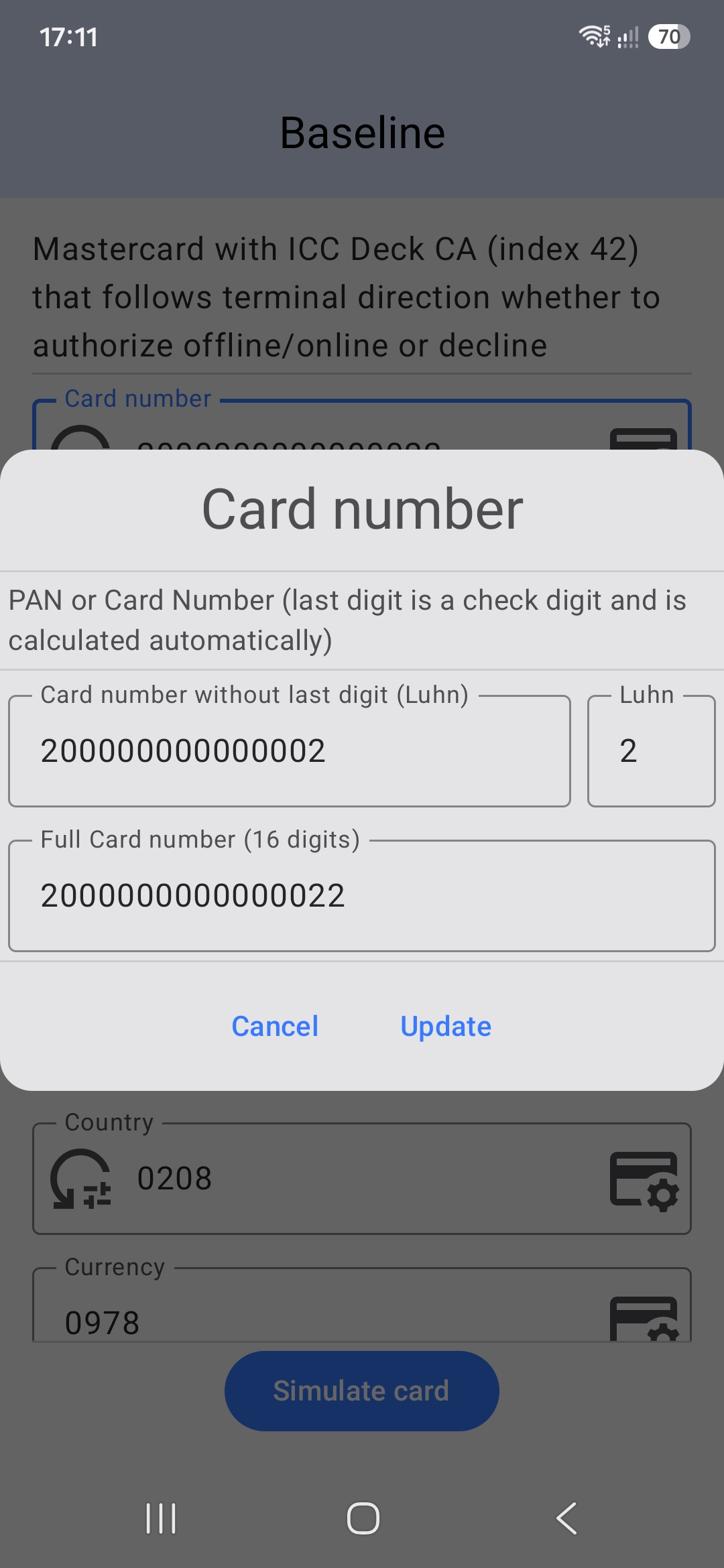
Once you select a card to simulate, you may be able to change some of its features. Each field represents one configurable item and shows its current value (default or customized), together with one or two icons:
- Tapping it opens a pop-up window where the data can be modified.
 - Appears only if a field has been customized. Tapping it resets that field back to its default value.
Once you are satisfied with the customizations, tap Simulate card to start the simulation.
Wait for the simulation to start
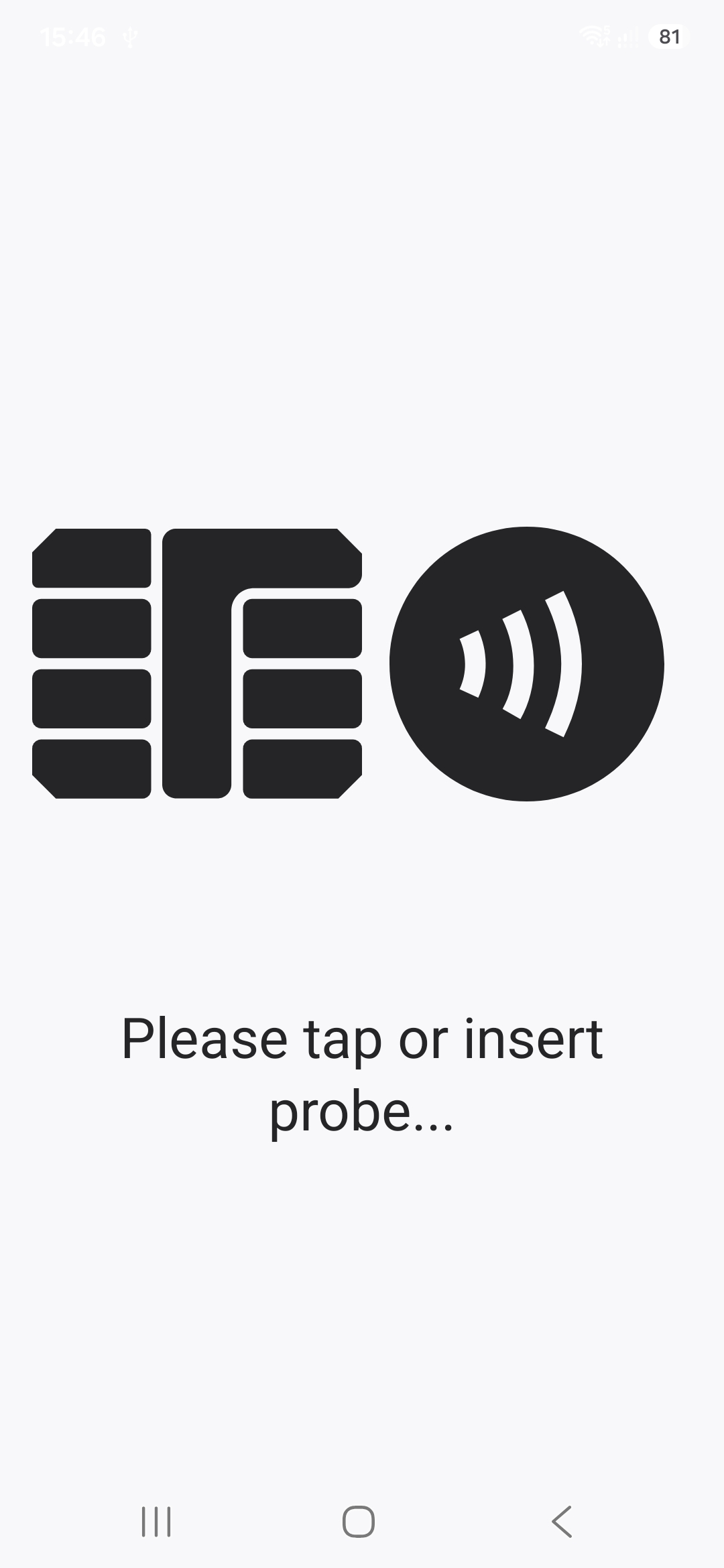
When the app is ready to simulate a card, you will see a screen asking you to tap the phone on a reader or insert the probe.
Note: Depending on the selected card, whether the probe is connected, and whether ICC Deck is set as the default wallet app, you may be asked to insert the card, tap it, or do either action.
Tap the phone or insert the probe
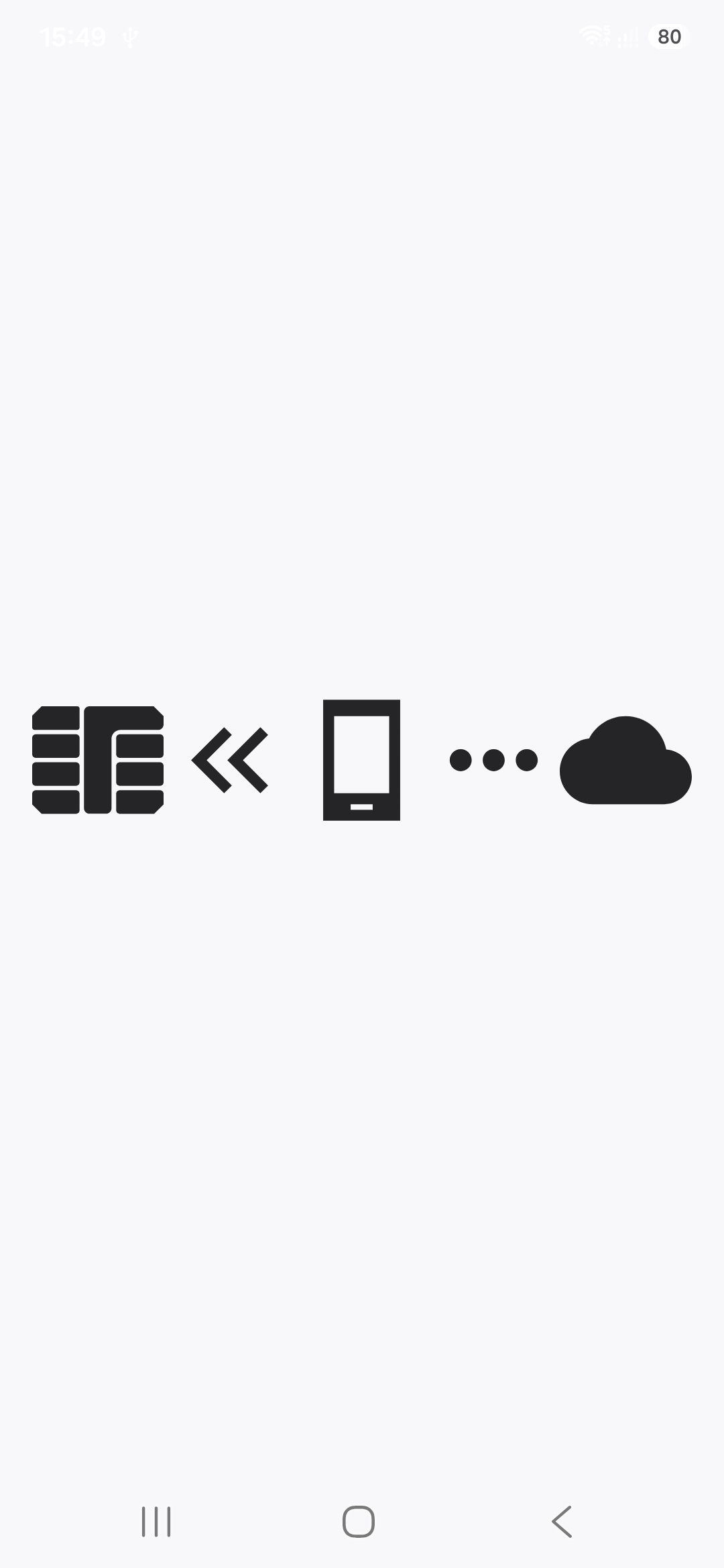
While the transaction is in progress, the screen displays icons showing the current state of data transmission. In normal circumstances, this screen is visible only briefly.
Note: If the content changes slowly or does not change at all, it may mean one of two things:
- Data transmission on the phone is very slow, which may cause read failures.
- The transaction requires user input on the terminal (for example, application selection or PIN entry).
Collect or view logs
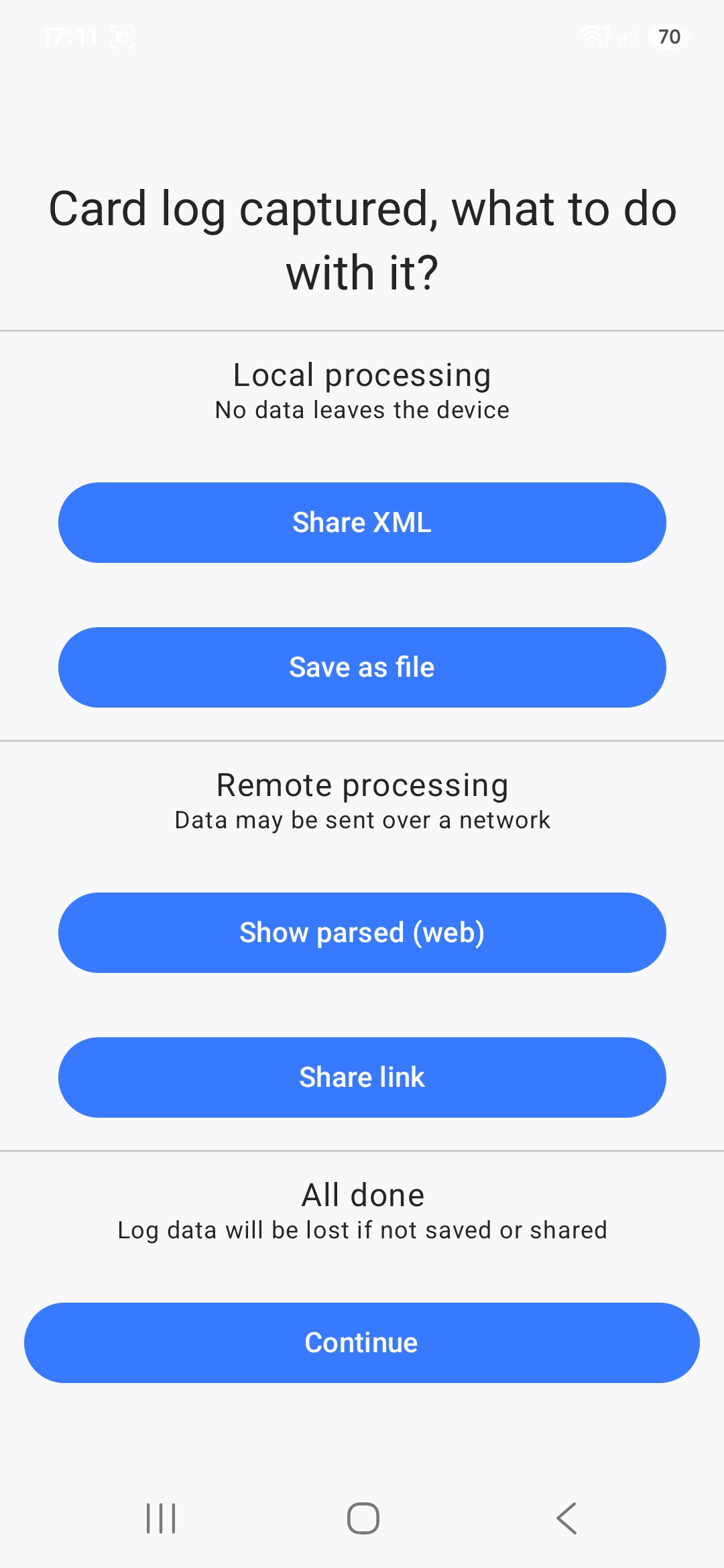
After the simulation ends, you can save or view the APDUs exchanged between the card and the terminal. Commands and responses are captured in an XML-based L3 log format that can be parsed using a tool available on this page.
- Share XML lets you share or save the log as XML data.
- Save as file lets you save the log as an XML file.
- Show parsed (web) opens a web page that presents a parsed log.
- Share link lets you share or save a link to a page with the parsed log, just like the option above. See an example of a parsed log here
Once you are done, tap Continue to return to the card customization screen.
Note: The log is not stored automatically. If you tap Continue without saving it, it will be lost forever.
Other actions
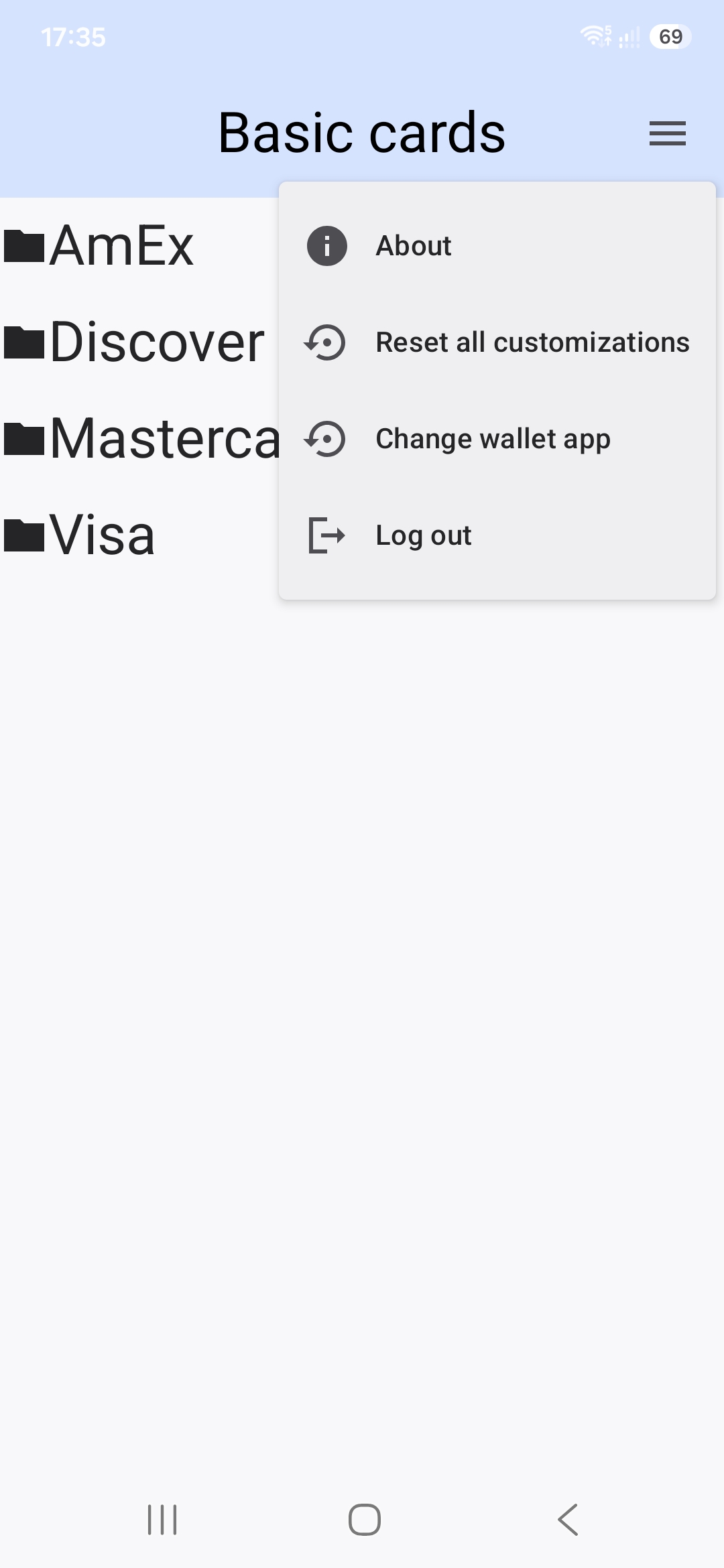
Tap the menu icon in the upper-right corner of the screen to open a menu with the following options:
- About: Shows basic information about the app, such as its version.
- Reset all customizations: Restores all customized fields for all cards to their default values.
- Change wallet app: Opens Android’s default wallet app selection screen.
- Log out: Signs you out of your user account.